CometOS

Early Access

Every screen,
as it ships.

24 screens from CometOS, captured in a virtual machine. No mockups, no retouching, nothing that only exists on this page.

Hello

From the first glow of the guava to your own desktop, CometOS asks only what it needs.
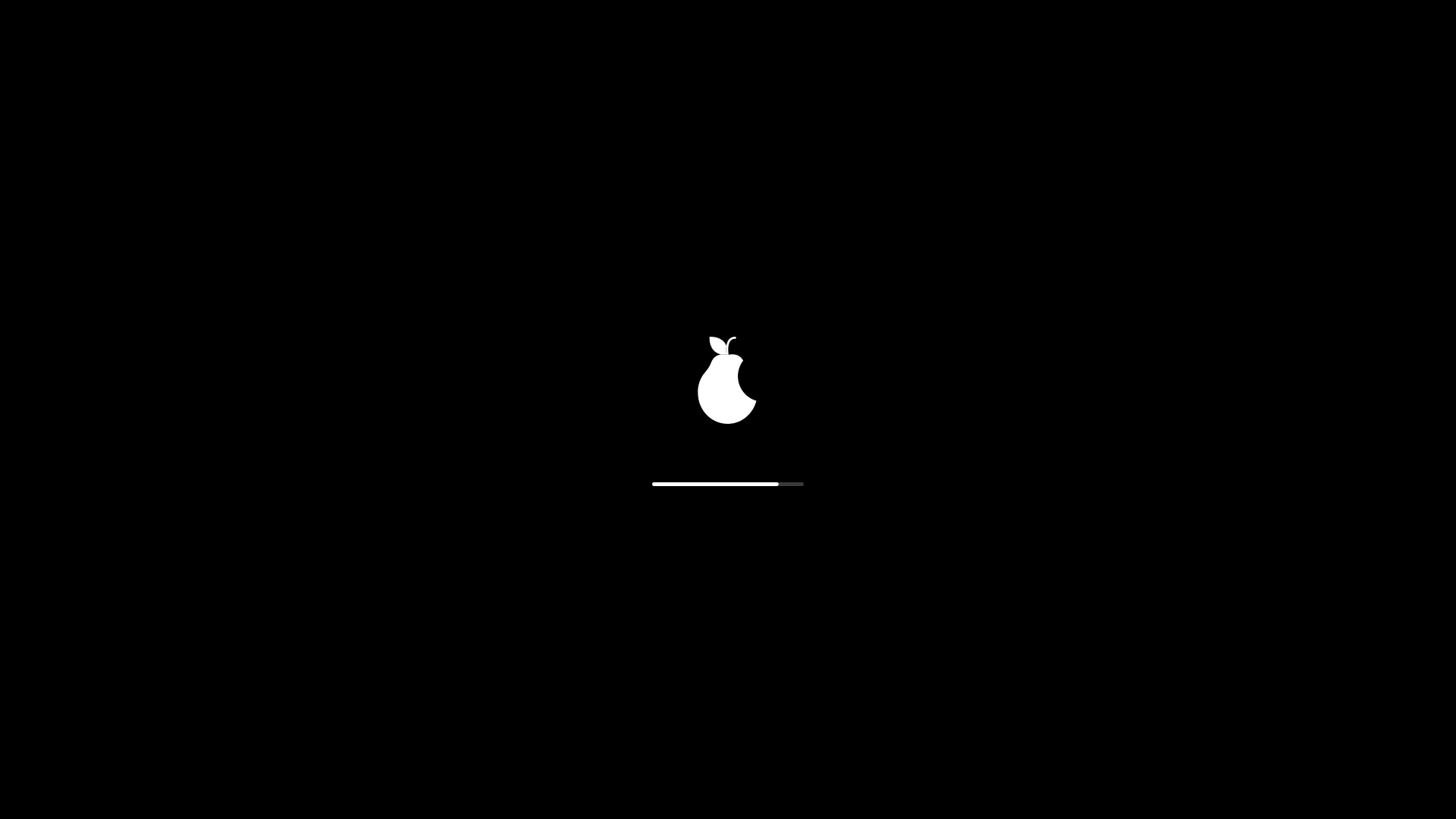
Starting up. The guava and a progress bar on black. No scrolling text, unless you ask for it.
Starting upThe guava and a progress bar on black. No scrolling text, unless you ask for it.
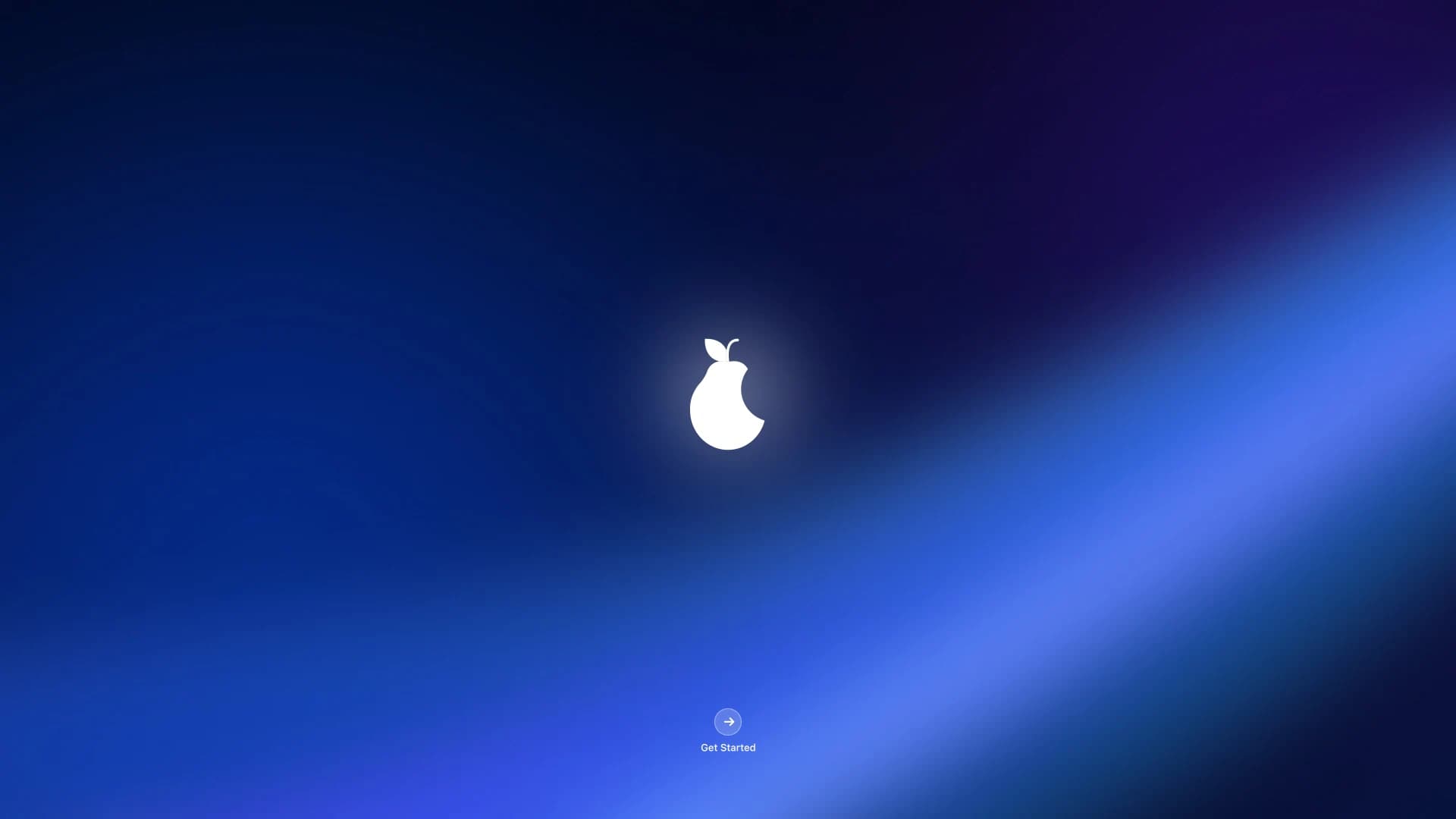
Hello. The first thing the install medium shows: the guava over the wallpaper, and Get Started.
HelloThe first thing the install medium shows: the guava over the wallpaper, and Get Started.
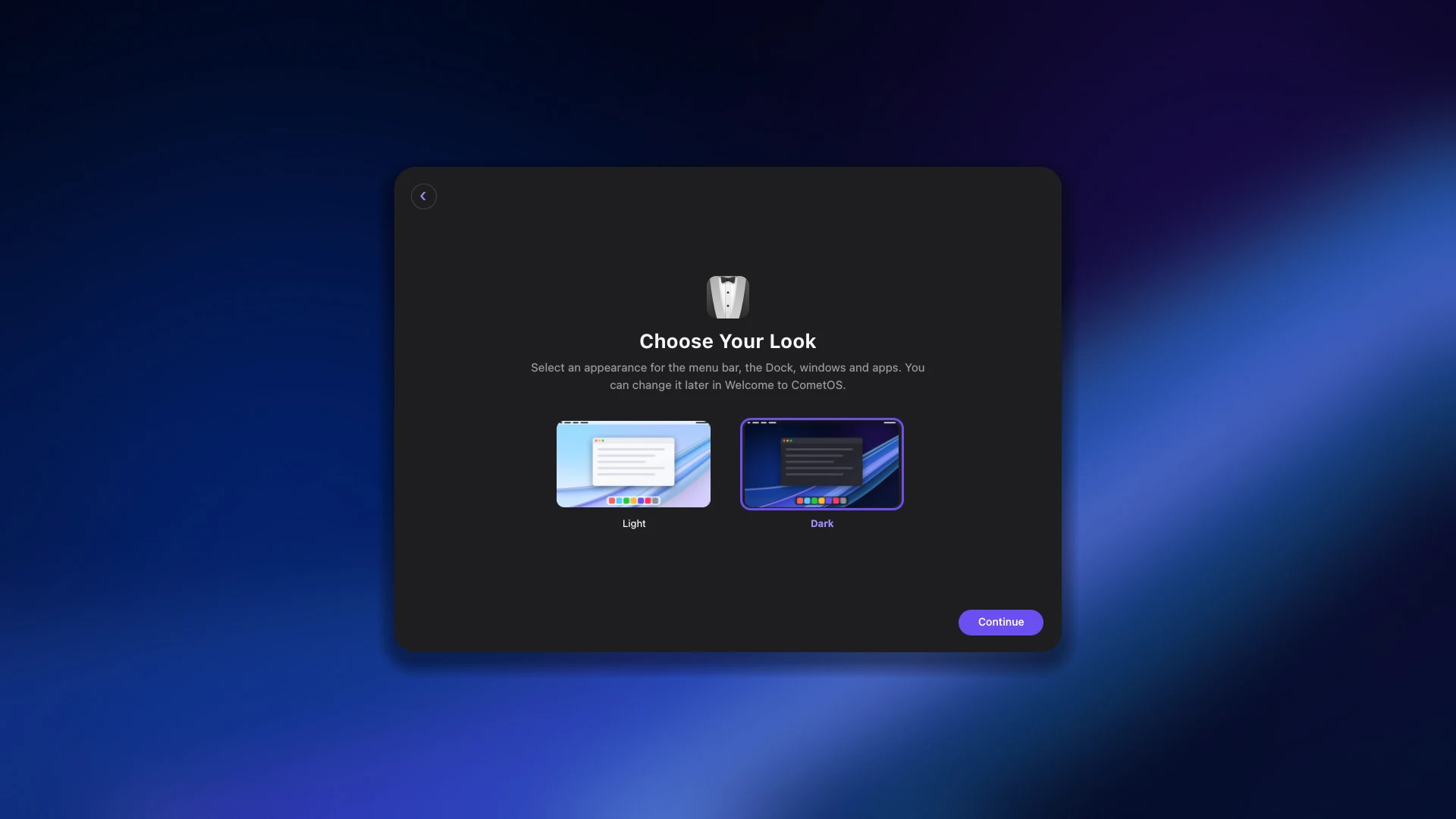
Choose your look. Light or Dark, picked before anything else. The menu bar, the Dock, windows and apps all follow.
Choose your lookLight or Dark, picked before anything else. The menu bar, the Dock, windows and apps all follow.
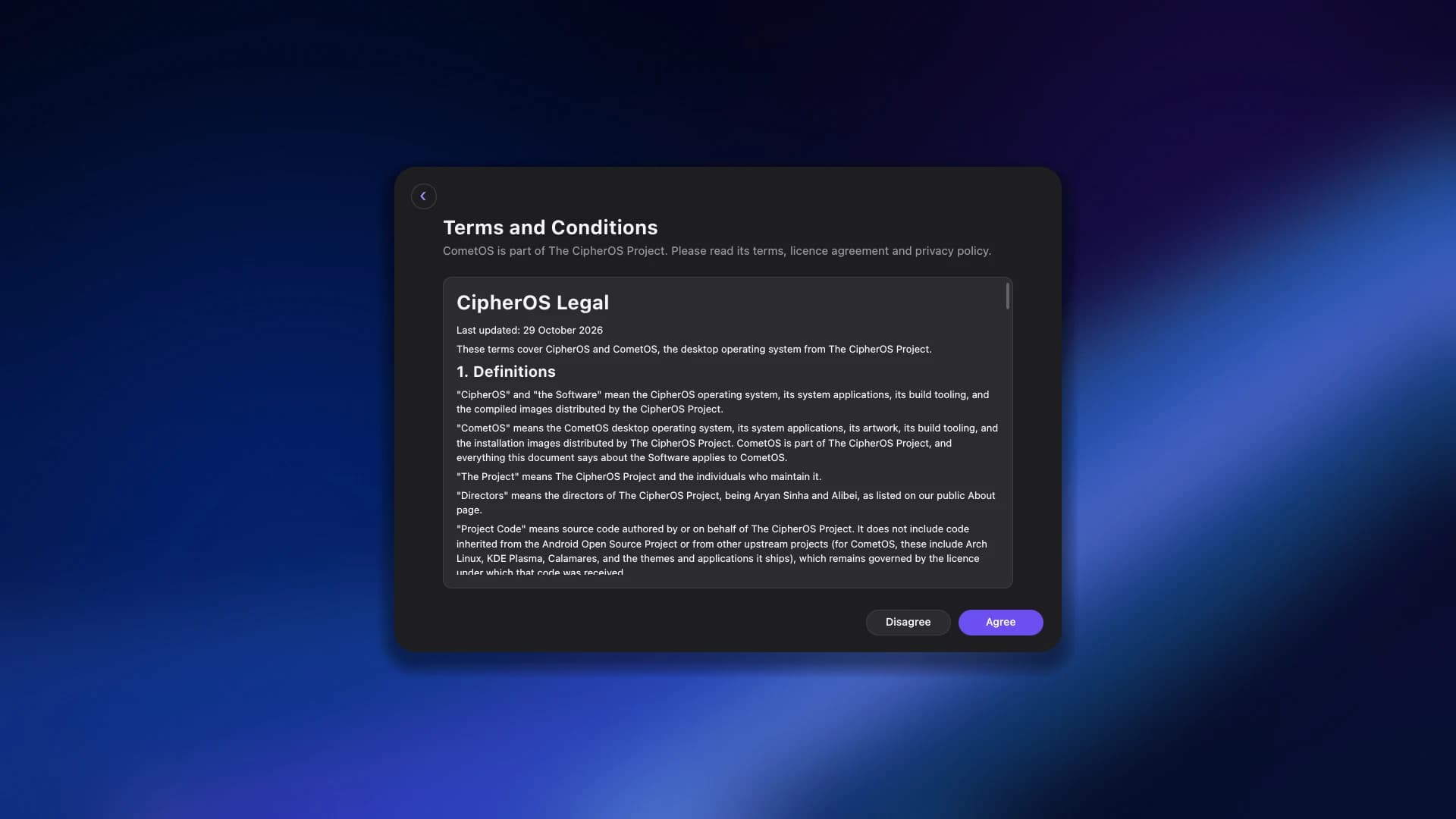
The terms, up front. CipherOS Legal, readable in full before you agree to anything.
The terms, up frontCipherOS Legal, readable in full before you agree to anything.
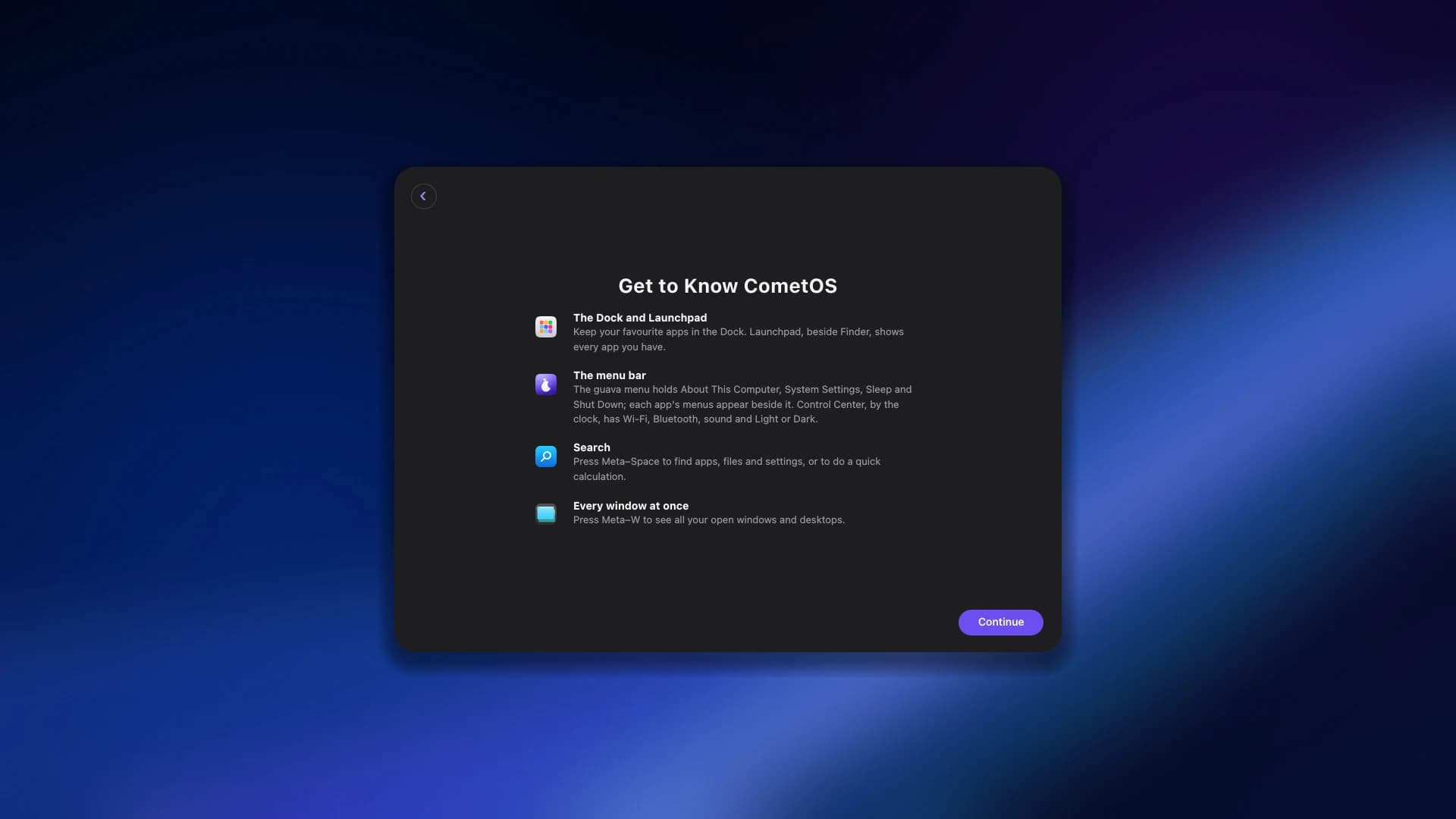
Get to know CometOS. A short tour of the Dock and Launchpad, the menu bar, search, and every window at once.
Get to know CometOSA short tour of the Dock and Launchpad, the menu bar, search, and every window at once.
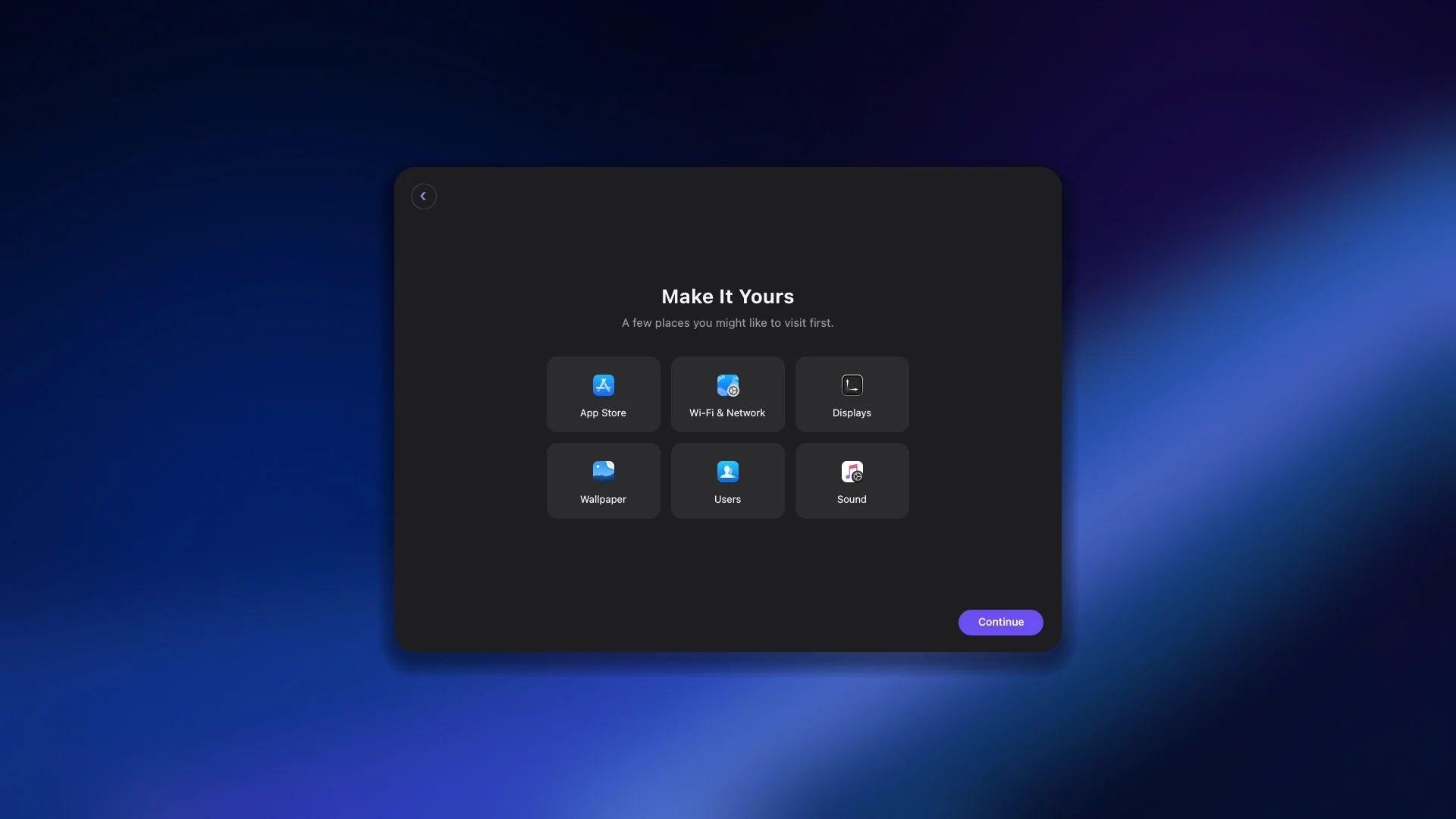
Make it yours. Shortcuts to the App Store, Wi-Fi, displays, wallpaper, users and sound.
Make it yoursShortcuts to the App Store, Wi-Fi, displays, wallpaper, users and sound.
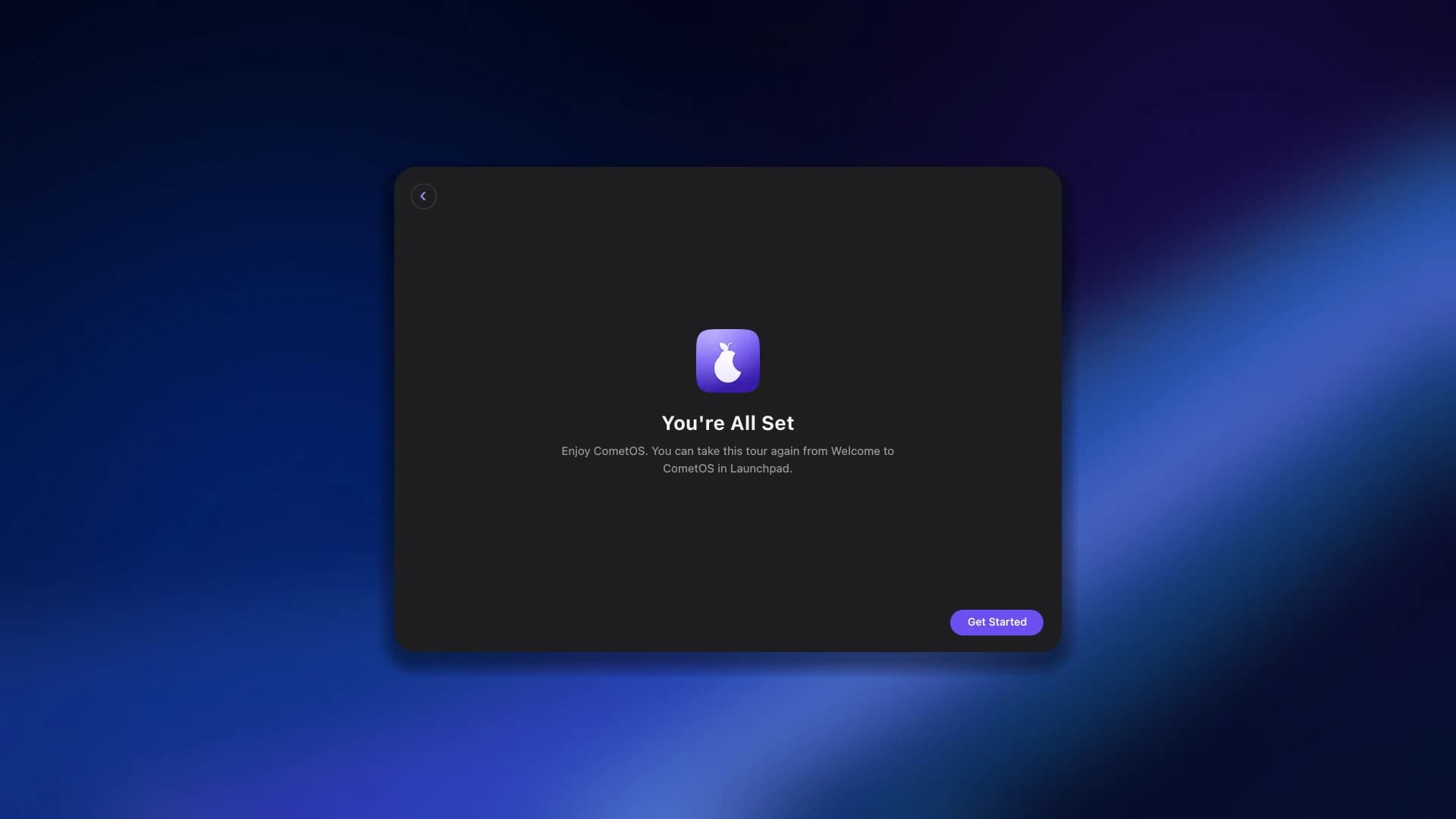
You’re all set. Take the tour again any time from Welcome to CometOS in Launchpad.
You’re all setTake the tour again any time from Welcome to CometOS in Launchpad.
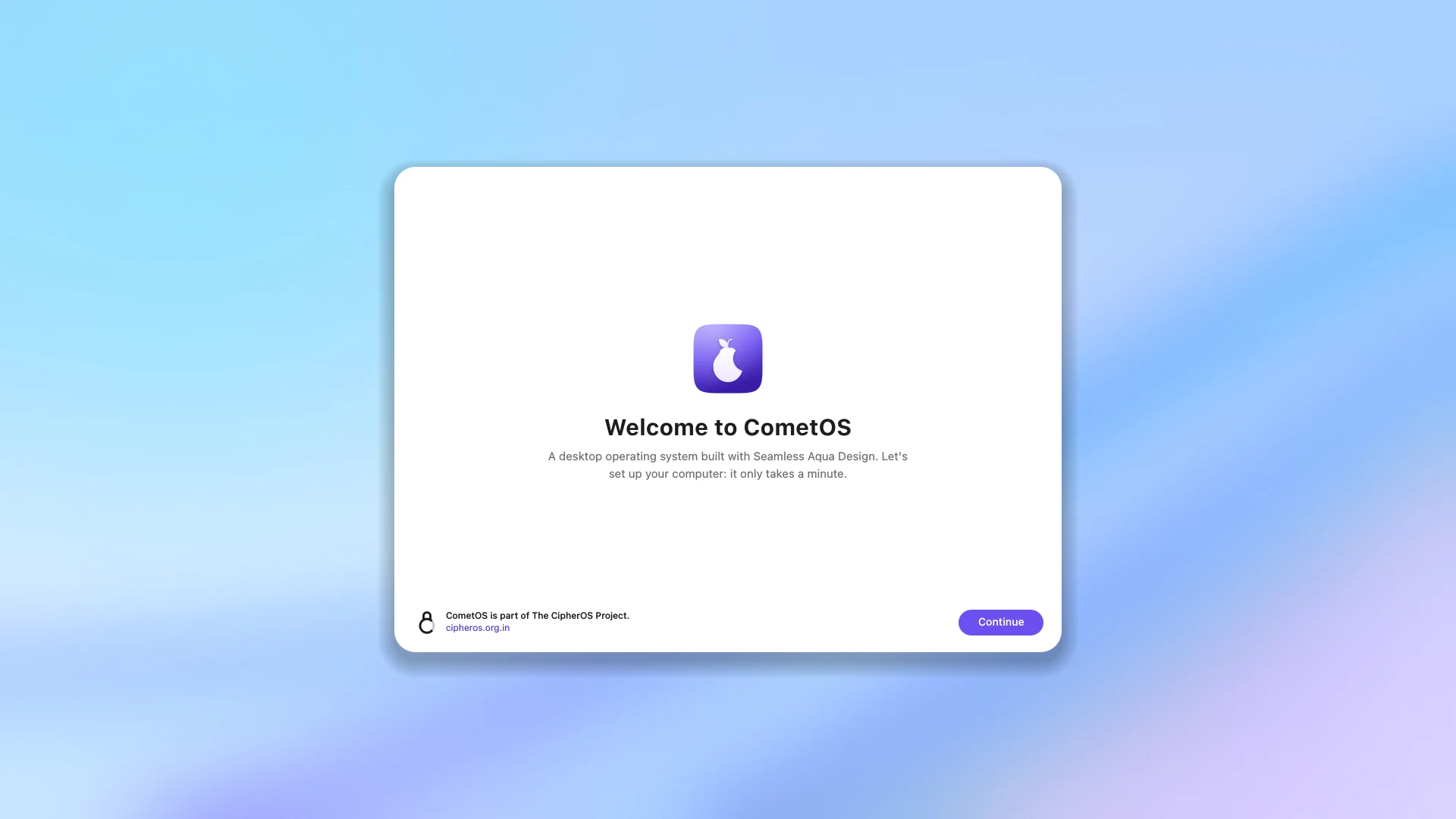
Welcome, in Light. On an installed computer, the first start sets up your account in a full screen assistant. It takes a minute.
Welcome, in LightOn an installed computer, the first start sets up your account in a full screen assistant. It takes a minute.

The desktop

A menu bar along the top, a Dock along the bottom, and glass behind both.
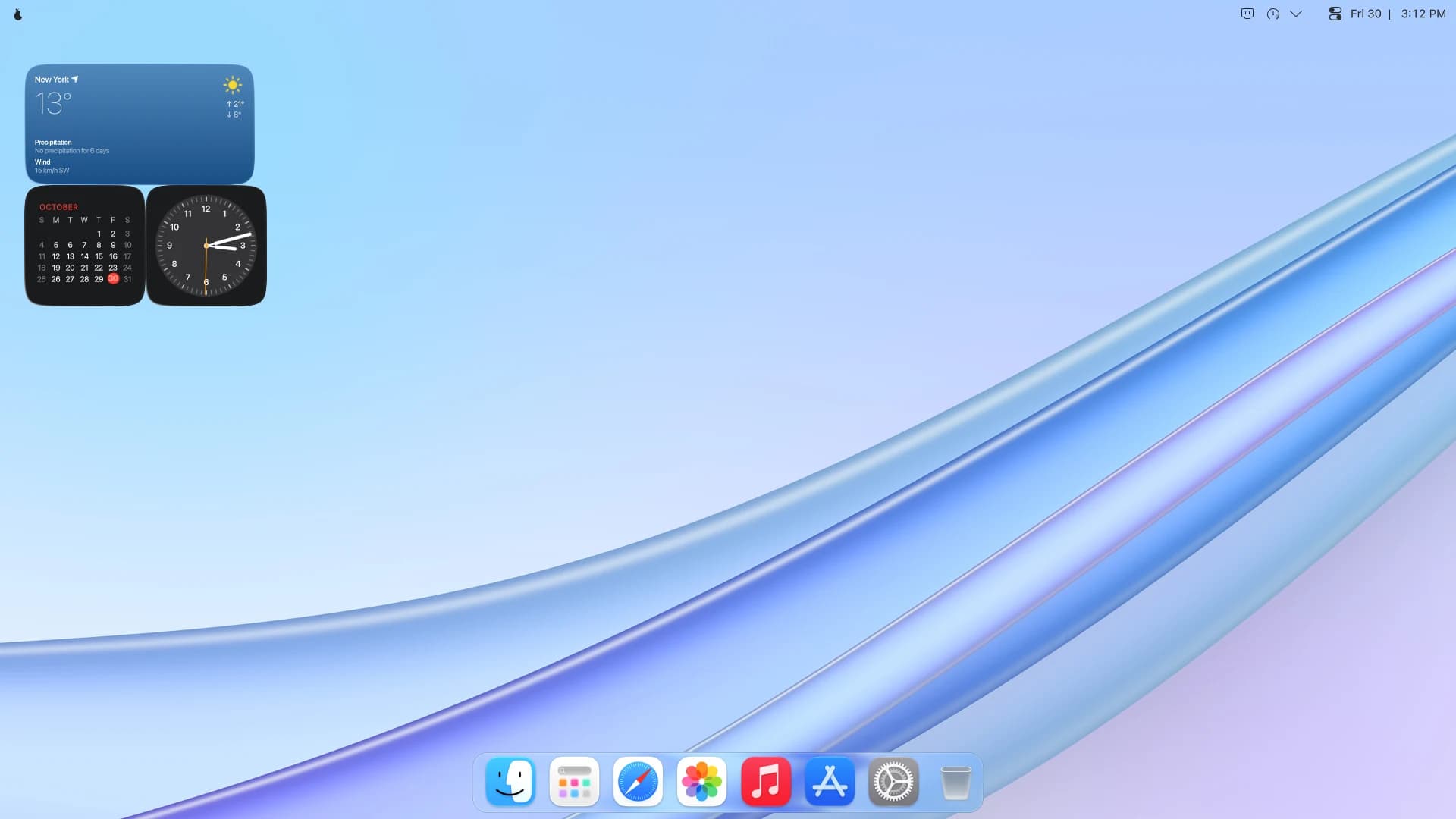
The desktop, in Light. Weather, a calendar and a clock on the desktop to start with, and a bigger Dock along the bottom.
The desktop, in LightWeather, a calendar and a clock on the desktop to start with, and a bigger Dock along the bottom.
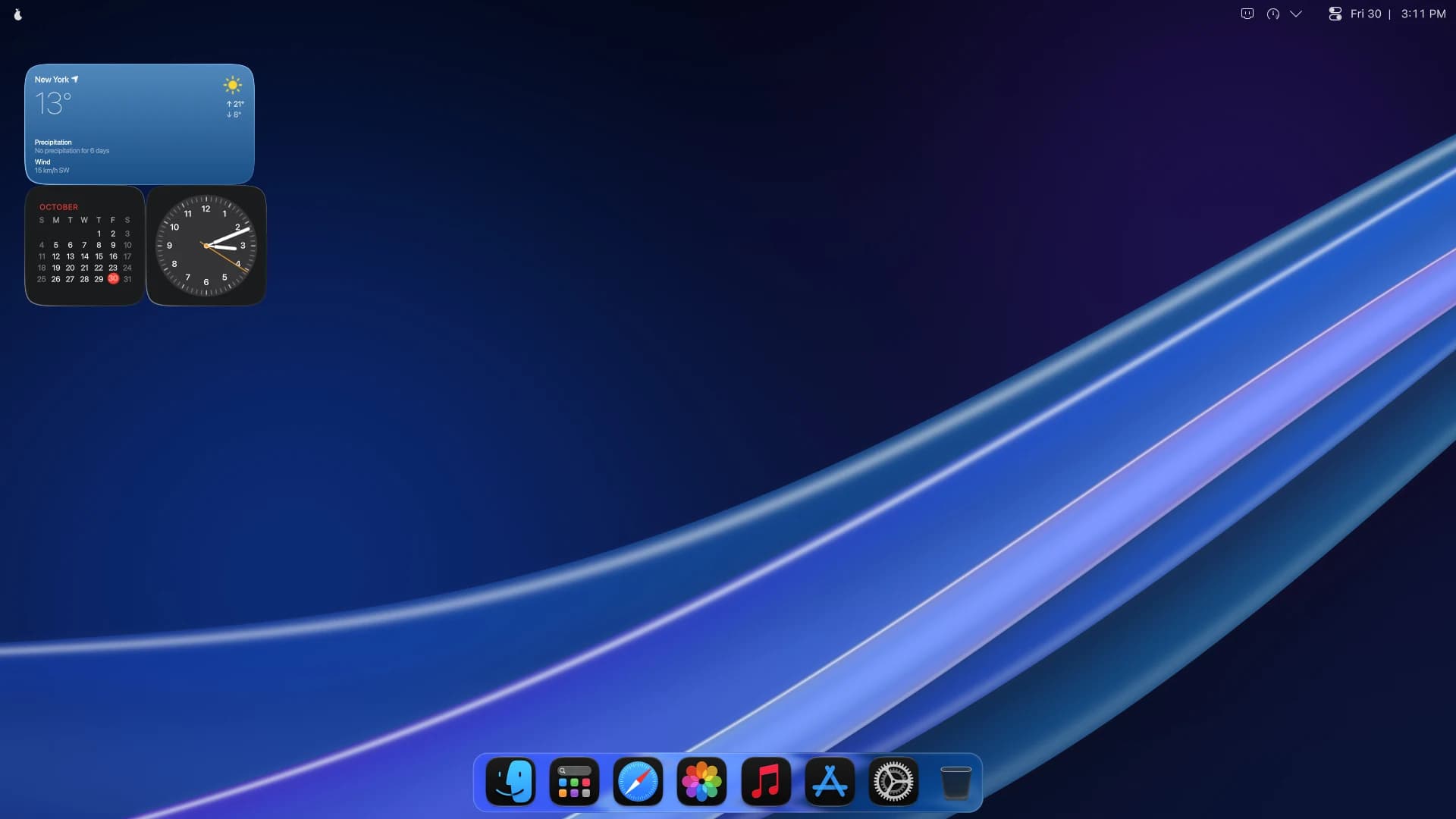
The desktop, in Dark. The same desktop after dark, with dark icons to match.
The desktop, in DarkThe same desktop after dark, with dark icons to match.
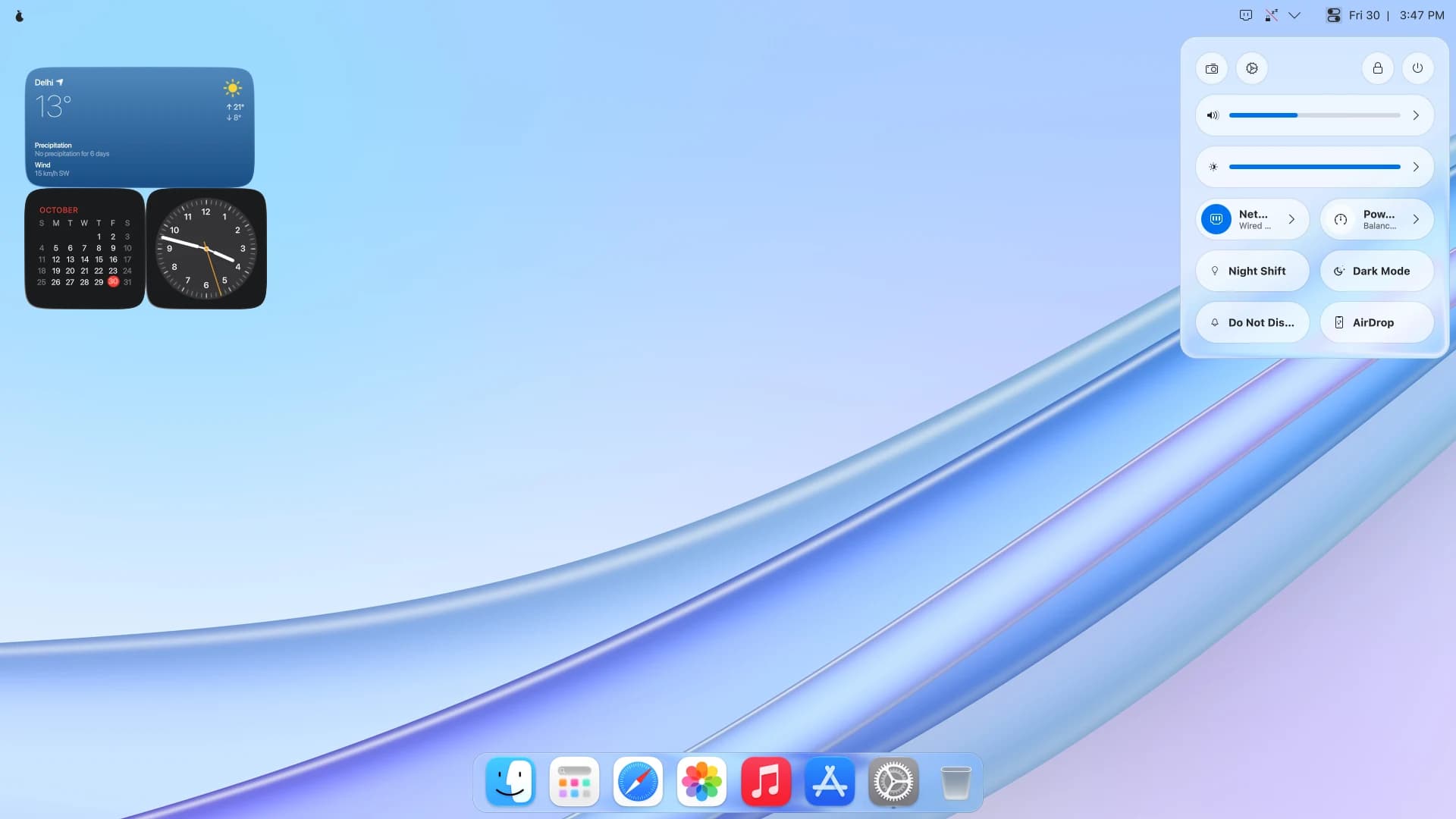
Control Center, in Light. Sound and brightness sliders, then network, power, Night Shift, Dark Mode, Do Not Disturb and AirDrop as pill toggles.
Control Center, in LightSound and brightness sliders, then network, power, Night Shift, Dark Mode, Do Not Disturb and AirDrop as pill toggles.
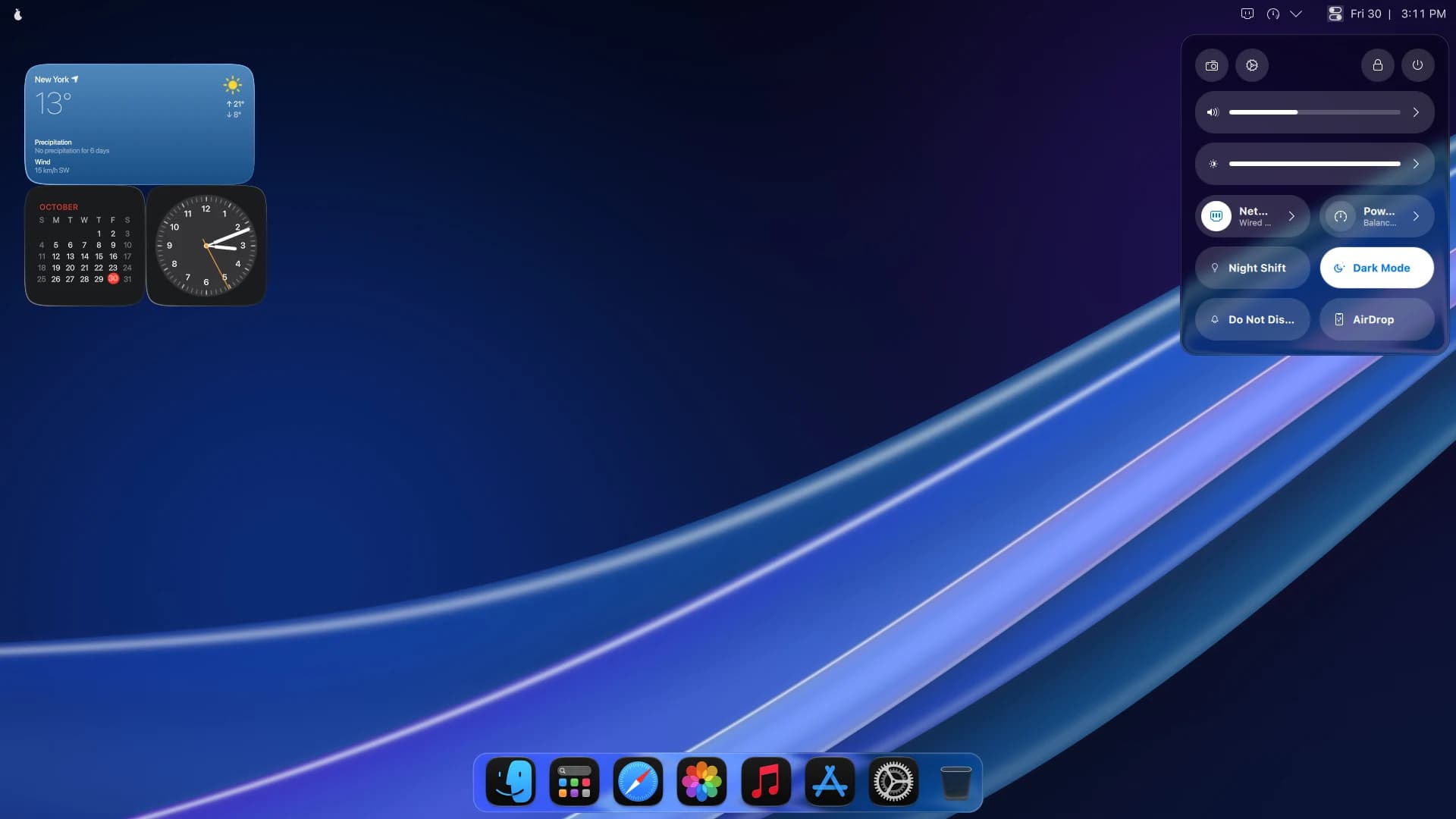
Control Center, in Dark. The same controls, one click from the corner of the menu bar.
Control Center, in DarkThe same controls, one click from the corner of the menu bar.
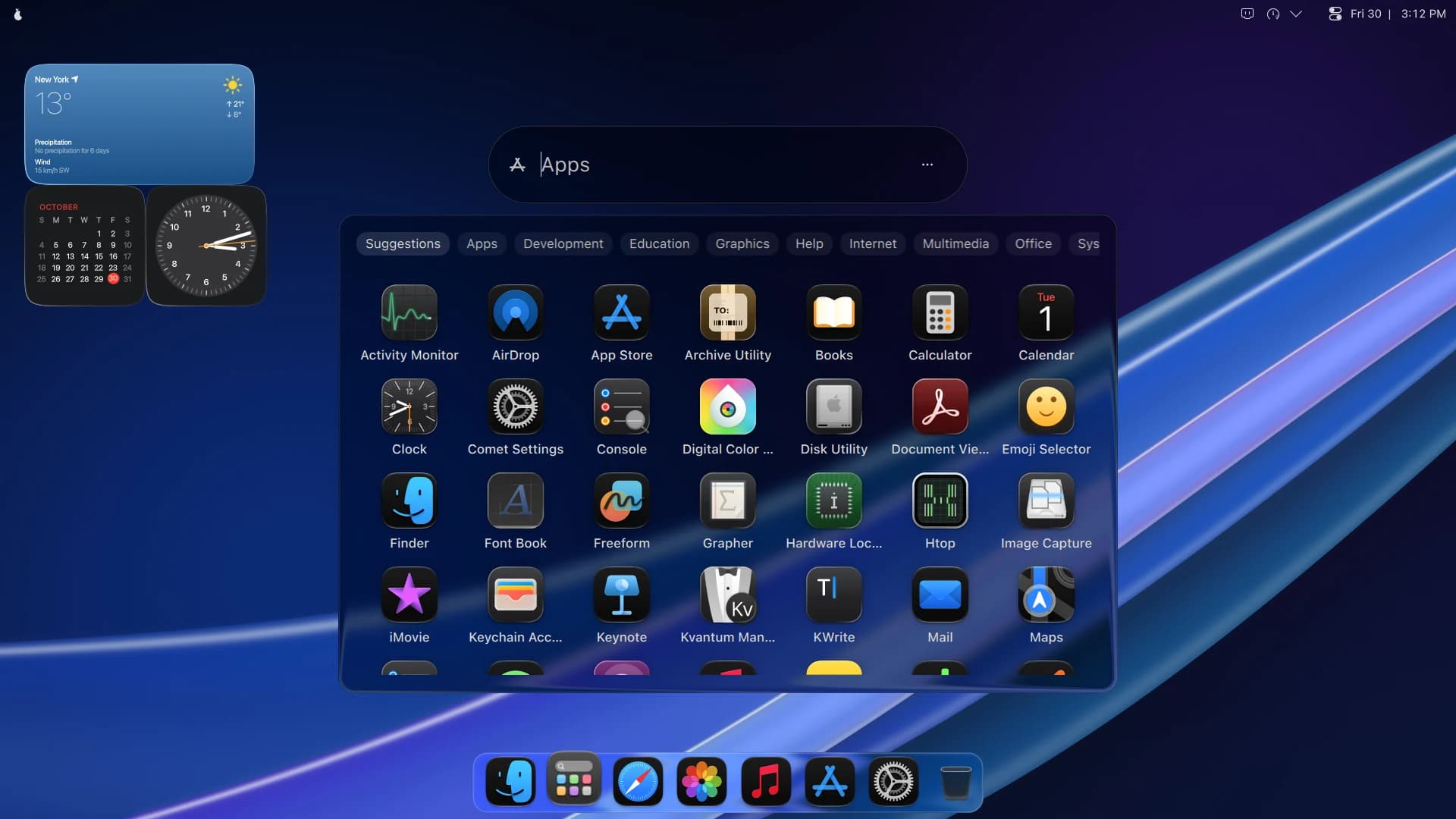
Launchpad. Every app, full screen, with search and categories along the top.
LaunchpadEvery app, full screen, with search and categories along the top.
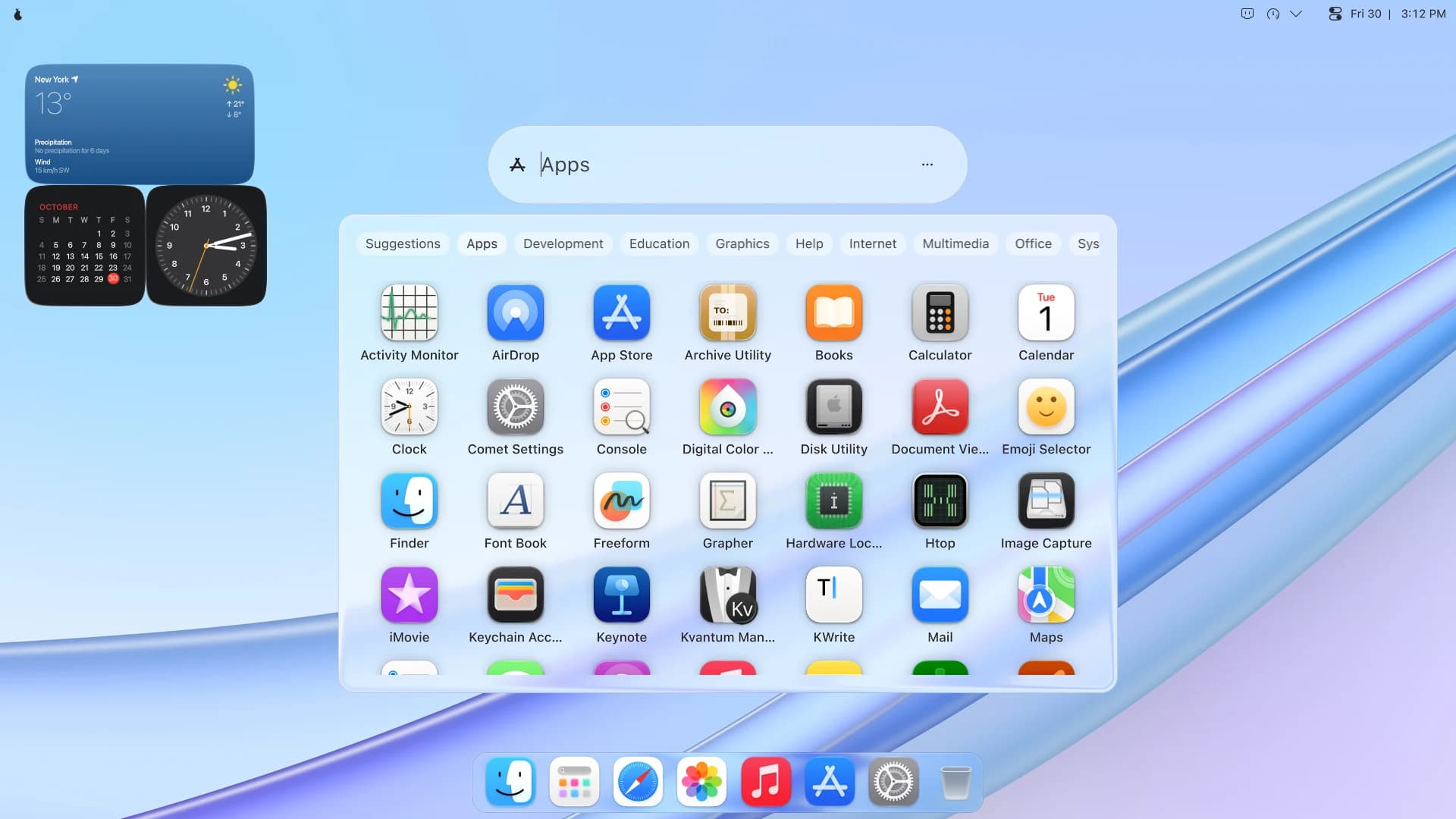
Launchpad, in Light. The same apps on frosted glass, over the Light wallpaper.
Launchpad, in LightThe same apps on frosted glass, over the Light wallpaper.
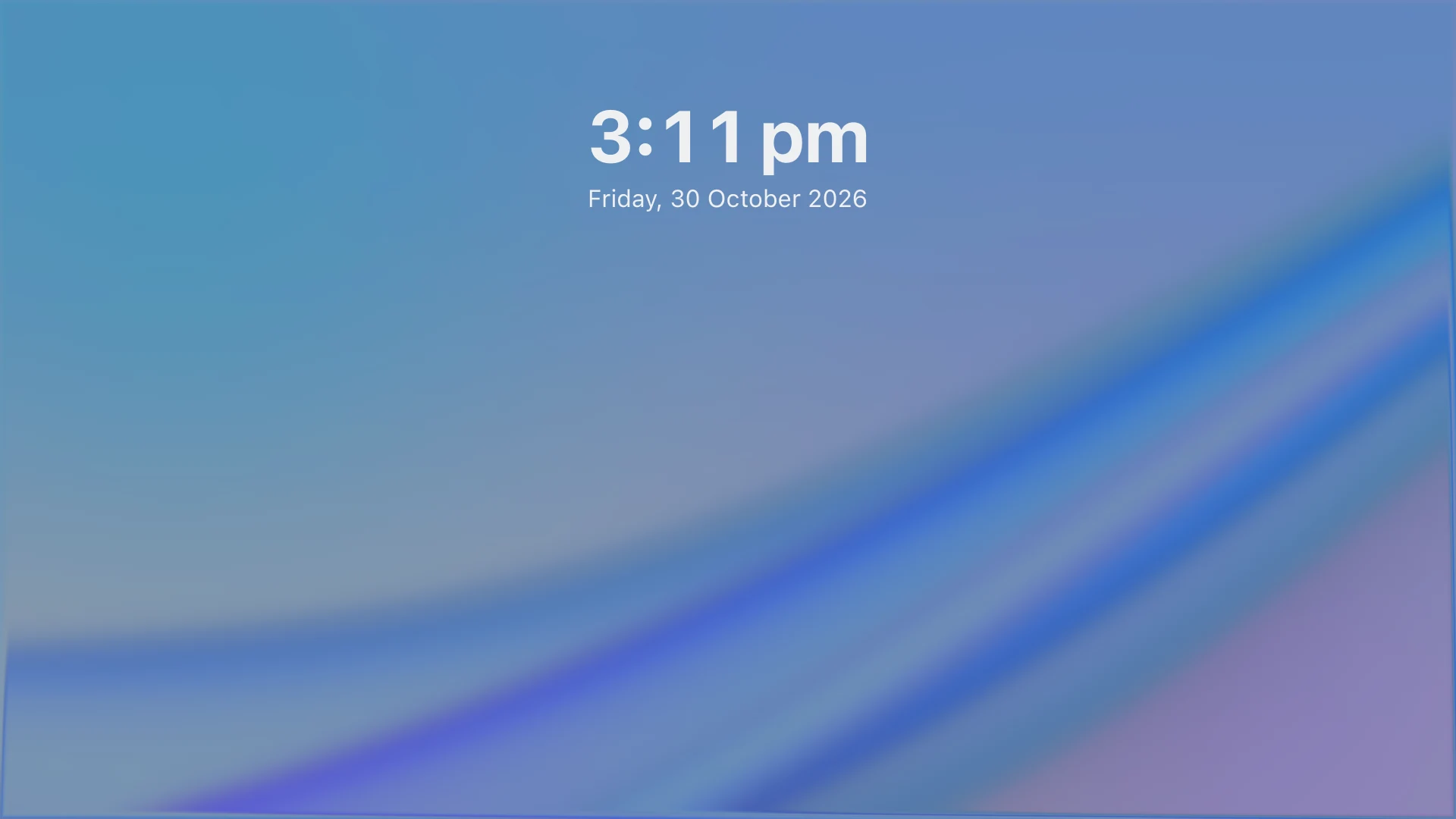
Lock screen. Just the time and the date over the wallpaper, until you start typing.
Lock screenJust the time and the date over the wallpaper, until you start typing.
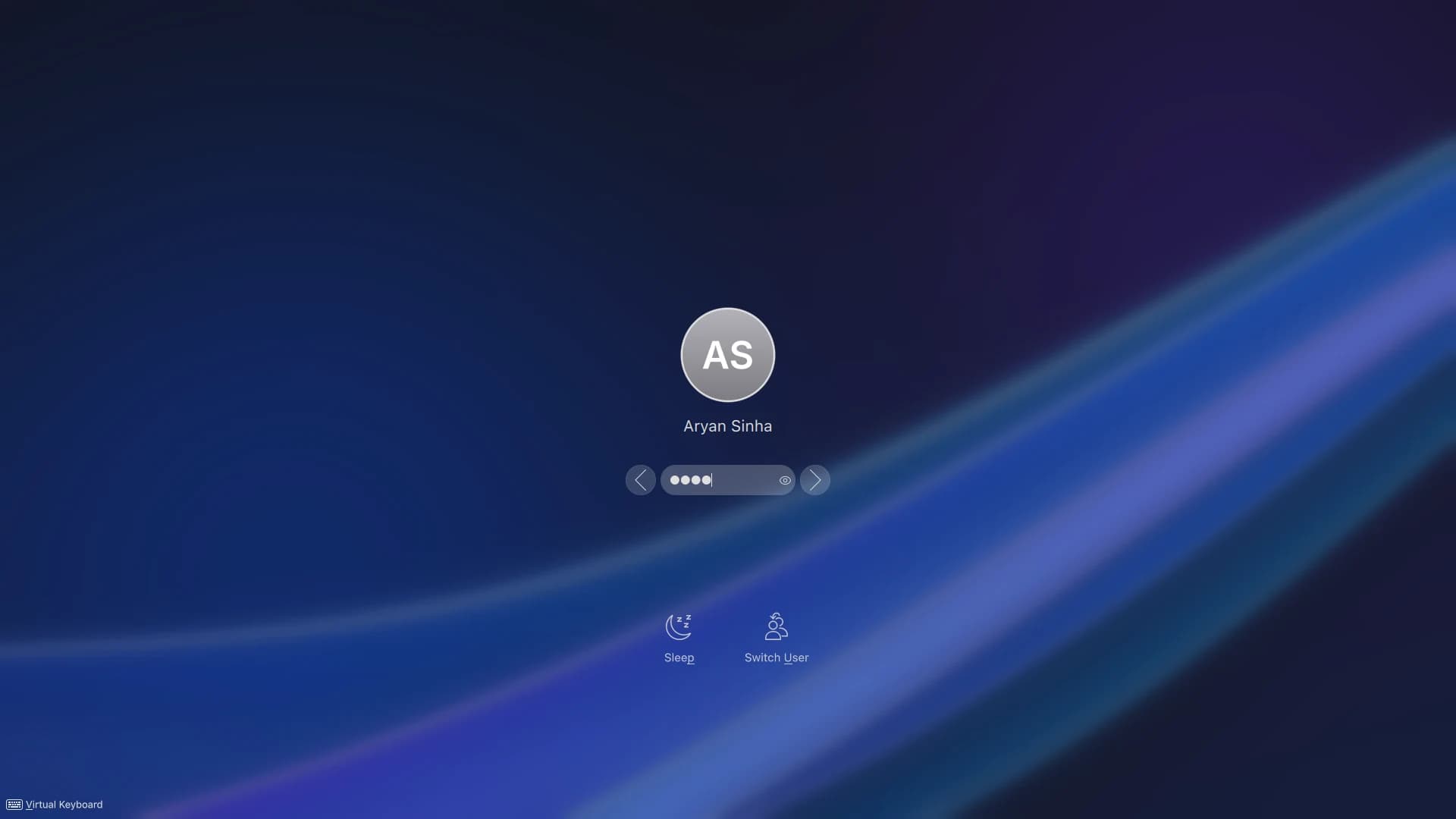
Signing in. Start typing and your picture and password appear, over a blurred wallpaper.
Signing inStart typing and your picture and password appear, over a blurred wallpaper.
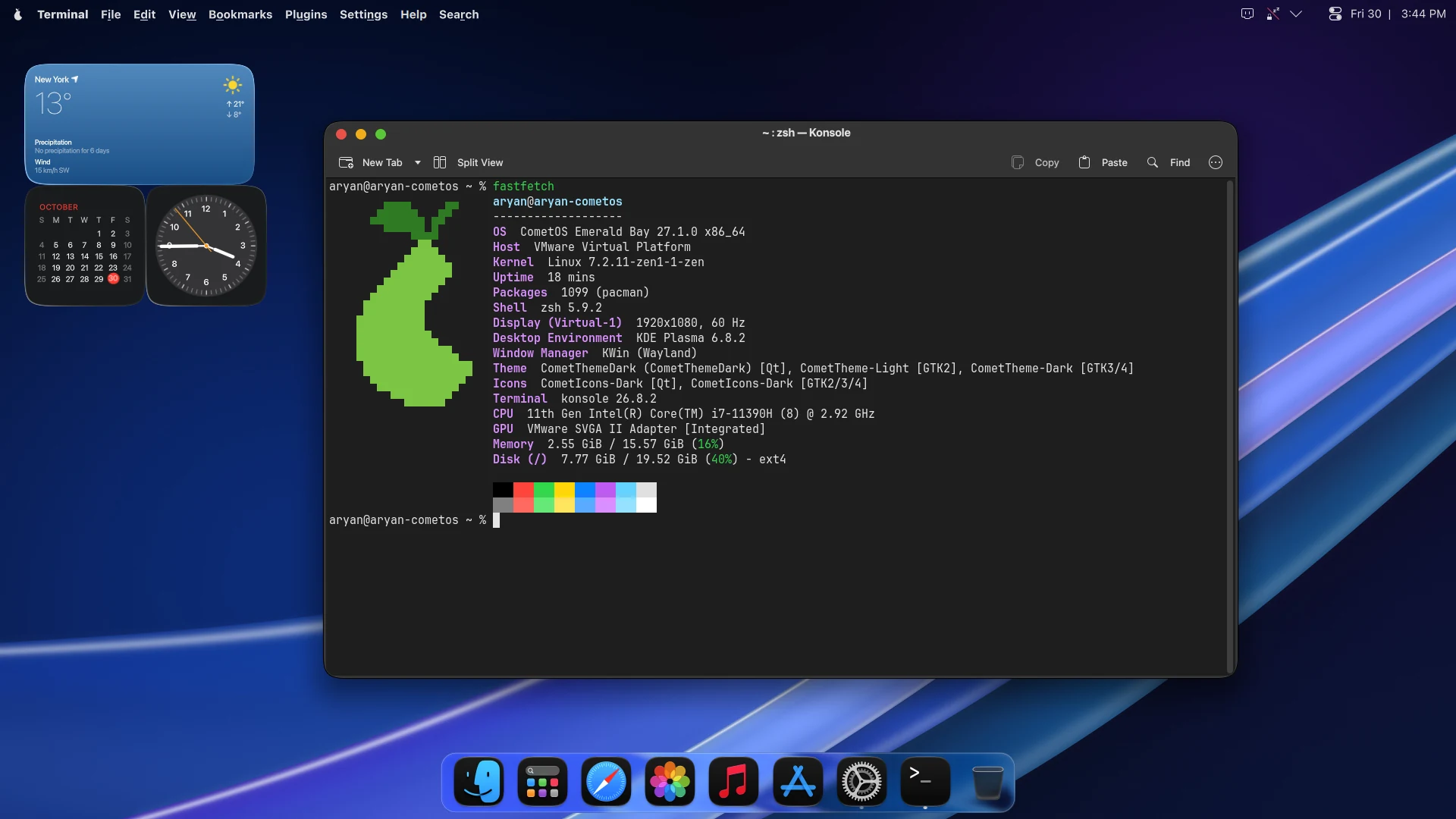
Terminal. Dark by default. Here, fastfetch: CometOS on the zen kernel, with packages from pacman.
TerminalDark by default. Here, fastfetch: CometOS on the zen kernel, with packages from pacman.

Settings

Comet Settings, laid out in groups, with your account at the top of the sidebar.
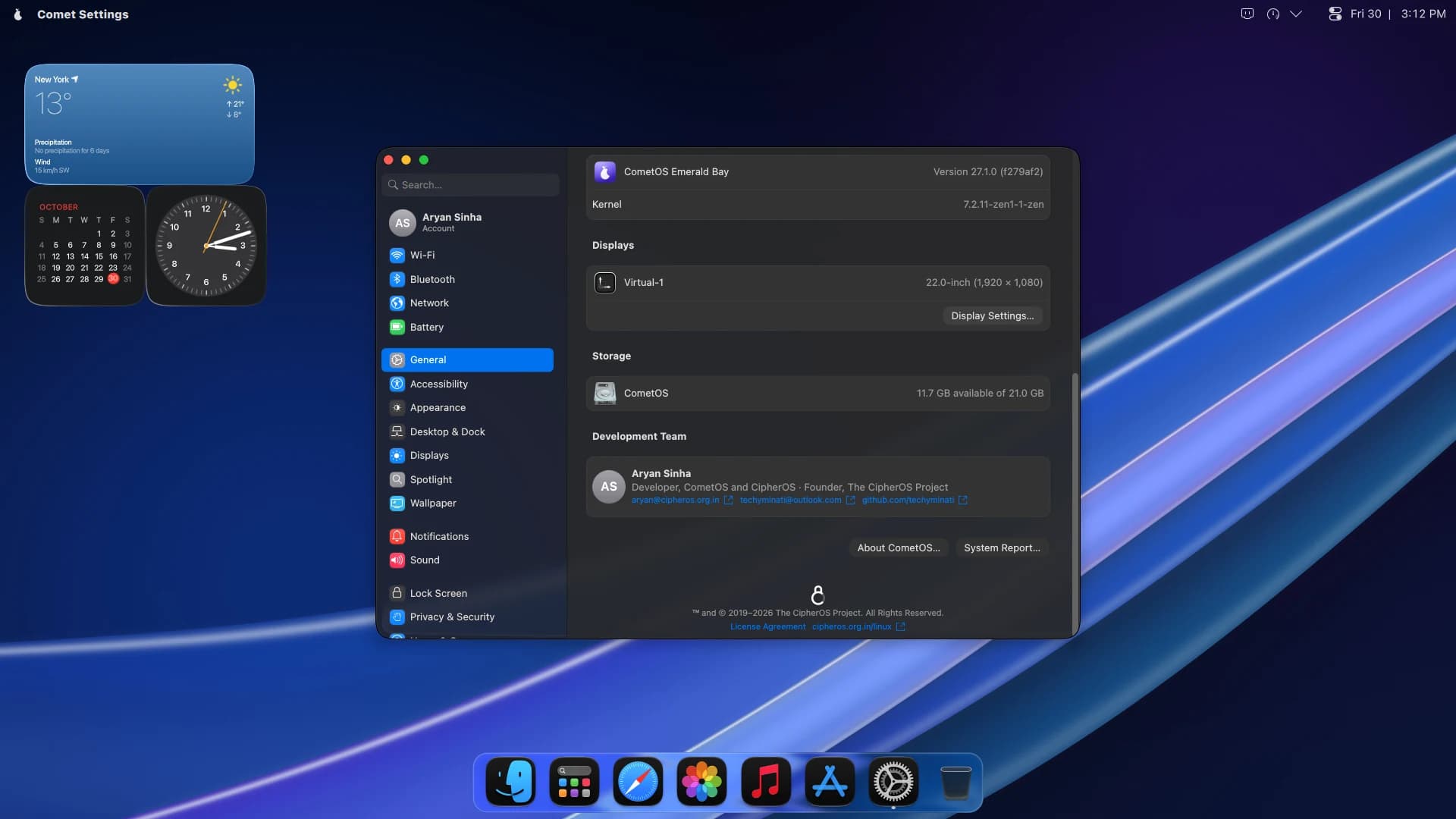
About, in Comet Settings. The CometOS version and kernel, your displays, how much storage is free, and who builds it.
About, in Comet SettingsThe CometOS version and kernel, your displays, how much storage is free, and who builds it.
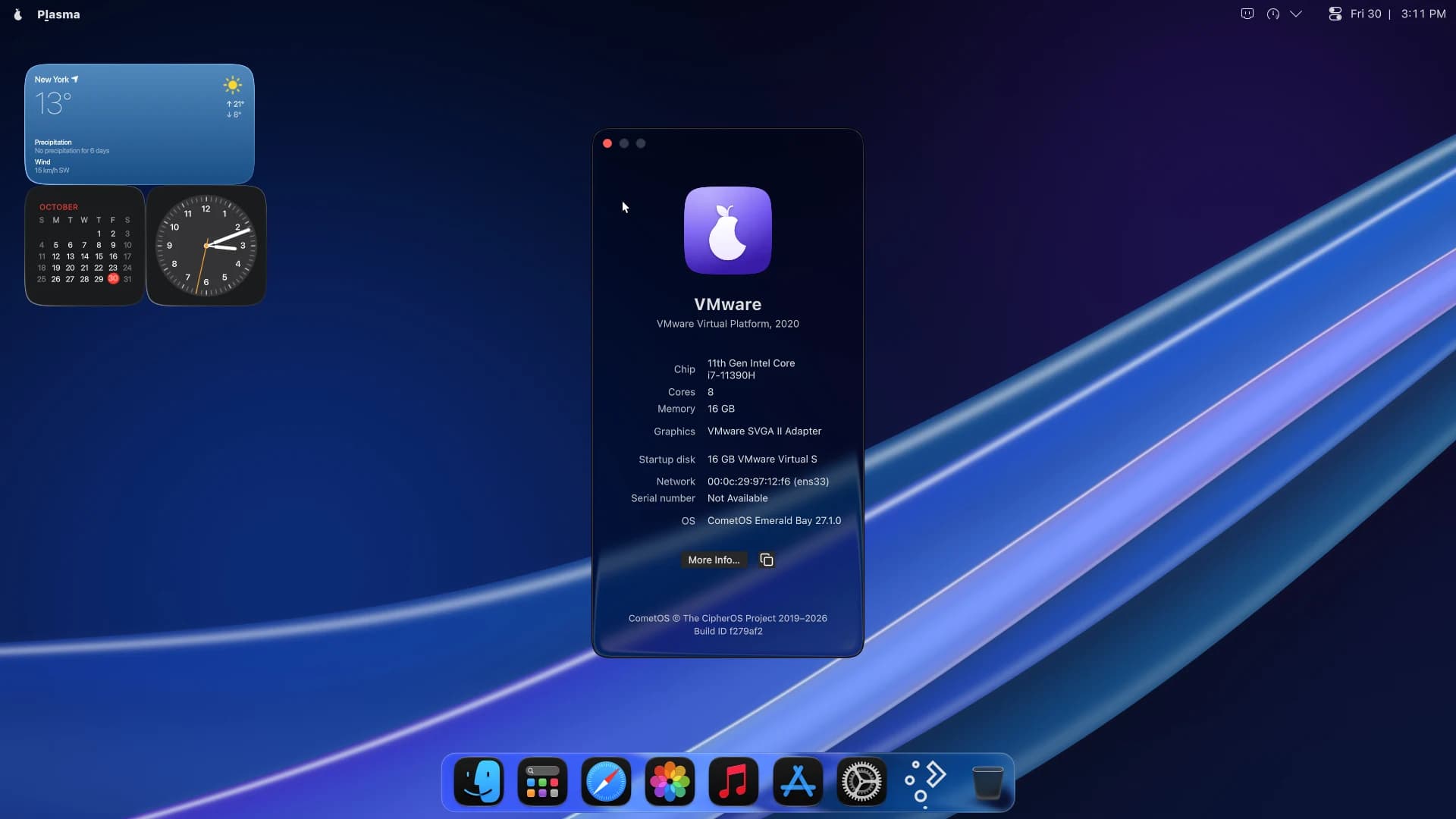
About This Computer. Chip, memory, graphics, disk and the CometOS build, from the guava menu. Here, a virtual machine.
About This ComputerChip, memory, graphics, disk and the CometOS build, from the guava menu. Here, a virtual machine.
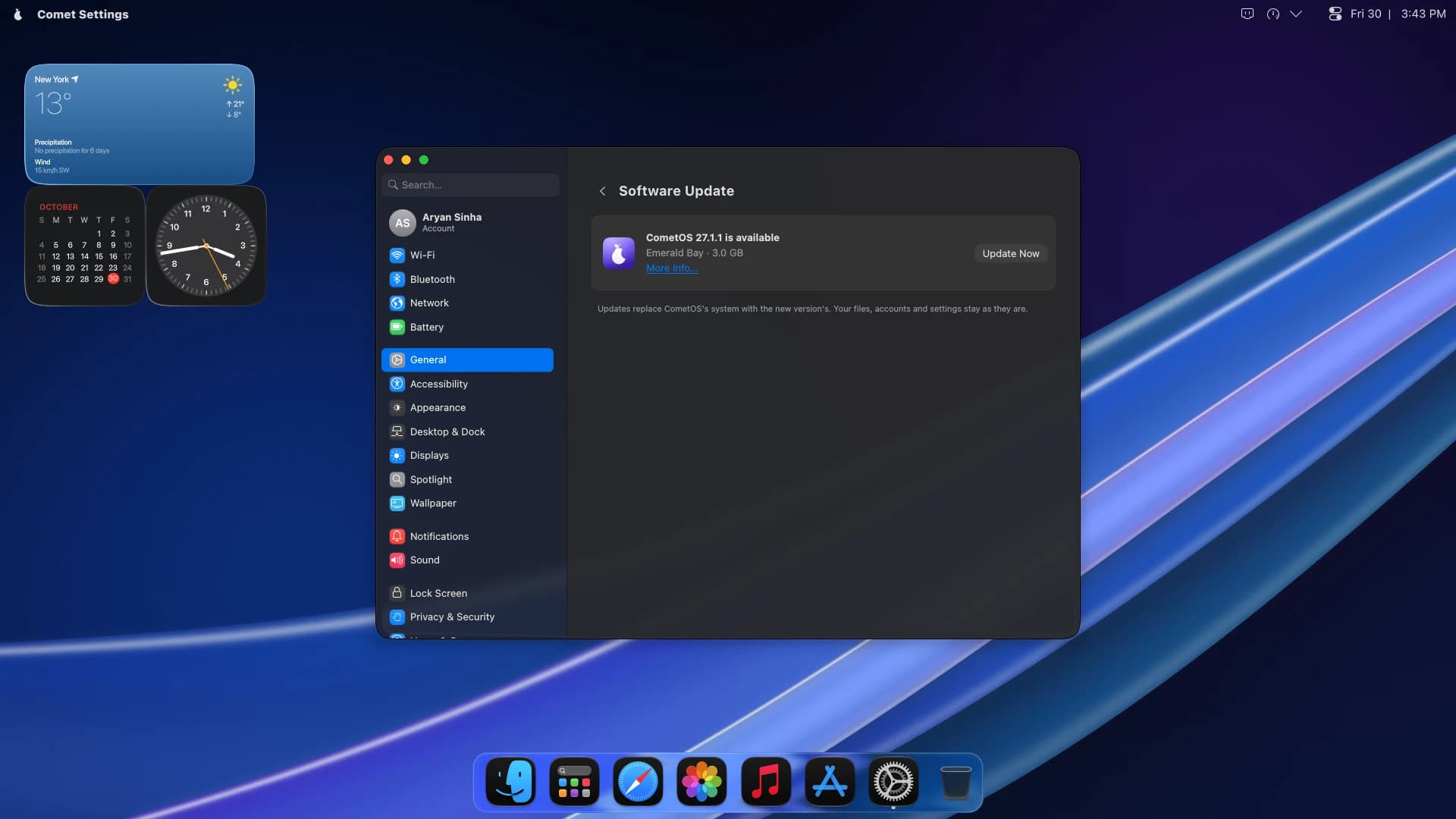
Software Update. When a new version is ready, Update Now installs it, and More Info says what is new first.
Software UpdateWhen a new version is ready, Update Now installs it, and More Info says what is new first.
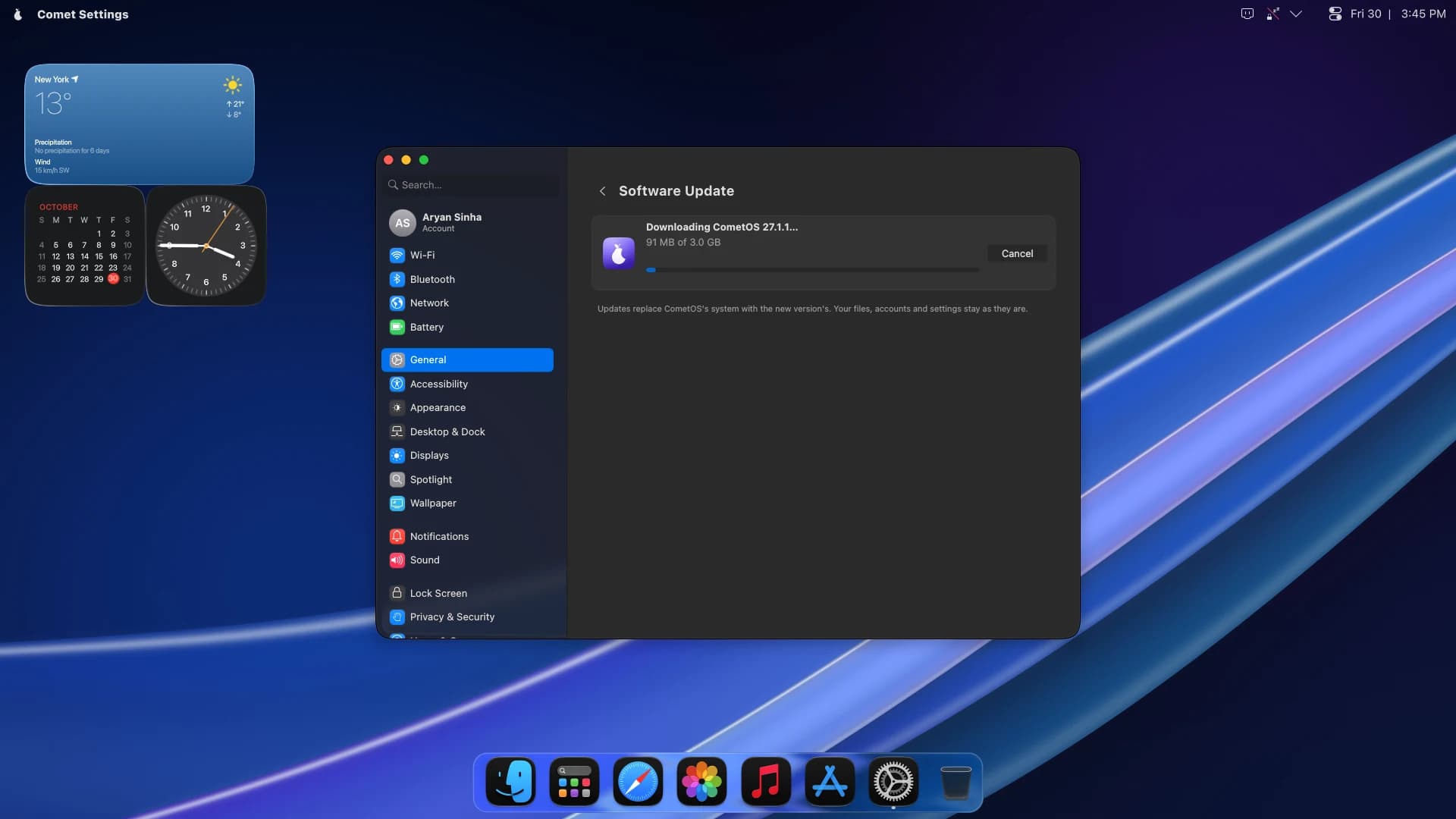
Downloading an update. Downloads carry on through a dropped connection, and pick up where they stopped.
Downloading an updateDownloads carry on through a dropped connection, and pick up where they stopped.

Installing

Try it first. When you are ready, the installer keeps the account you already made.
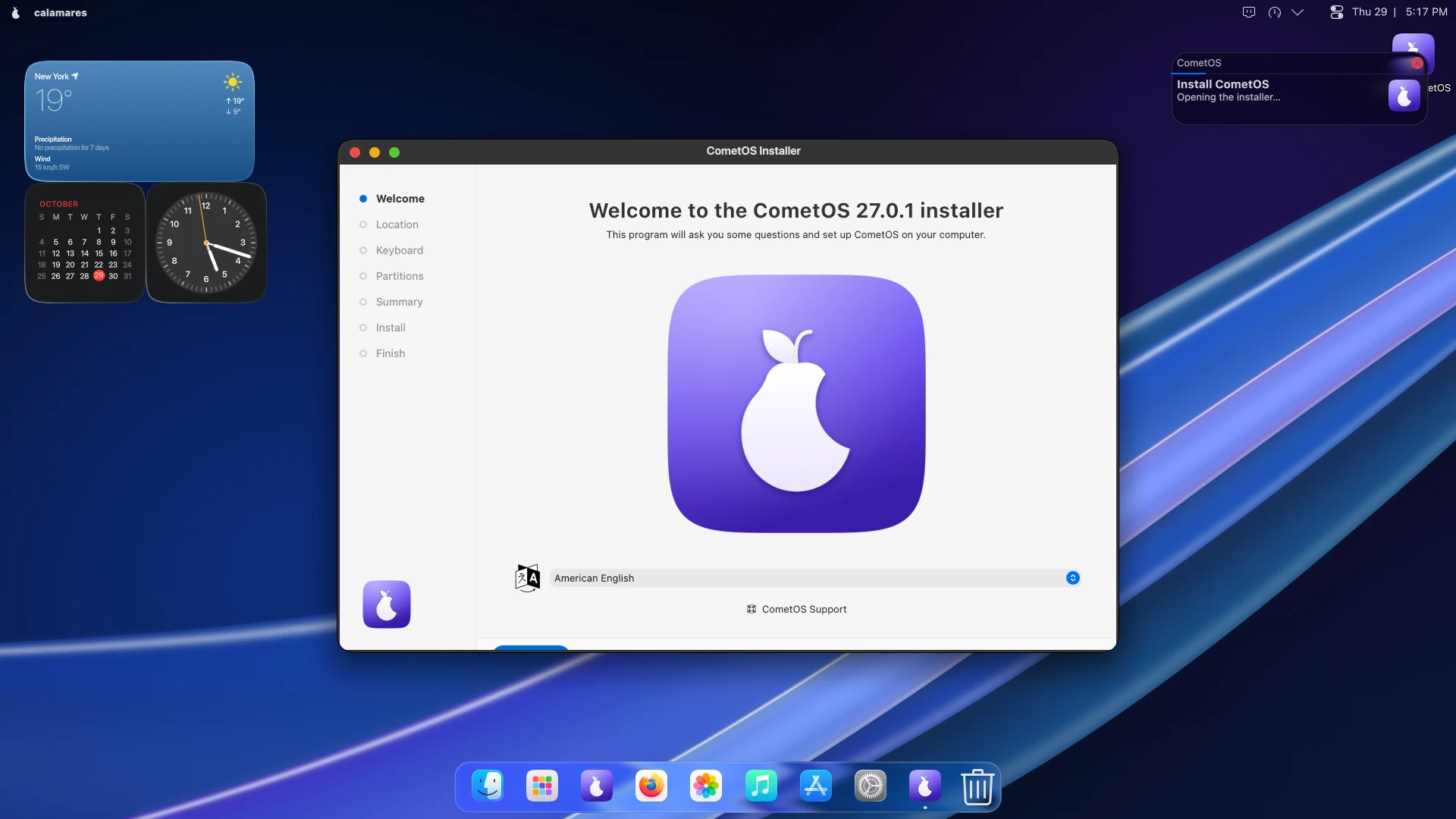
The installer. Install CometOS waits in the Dock of the live desktop, in your language from the first screen.
The installerInstall CometOS waits in the Dock of the live desktop, in your language from the first screen.
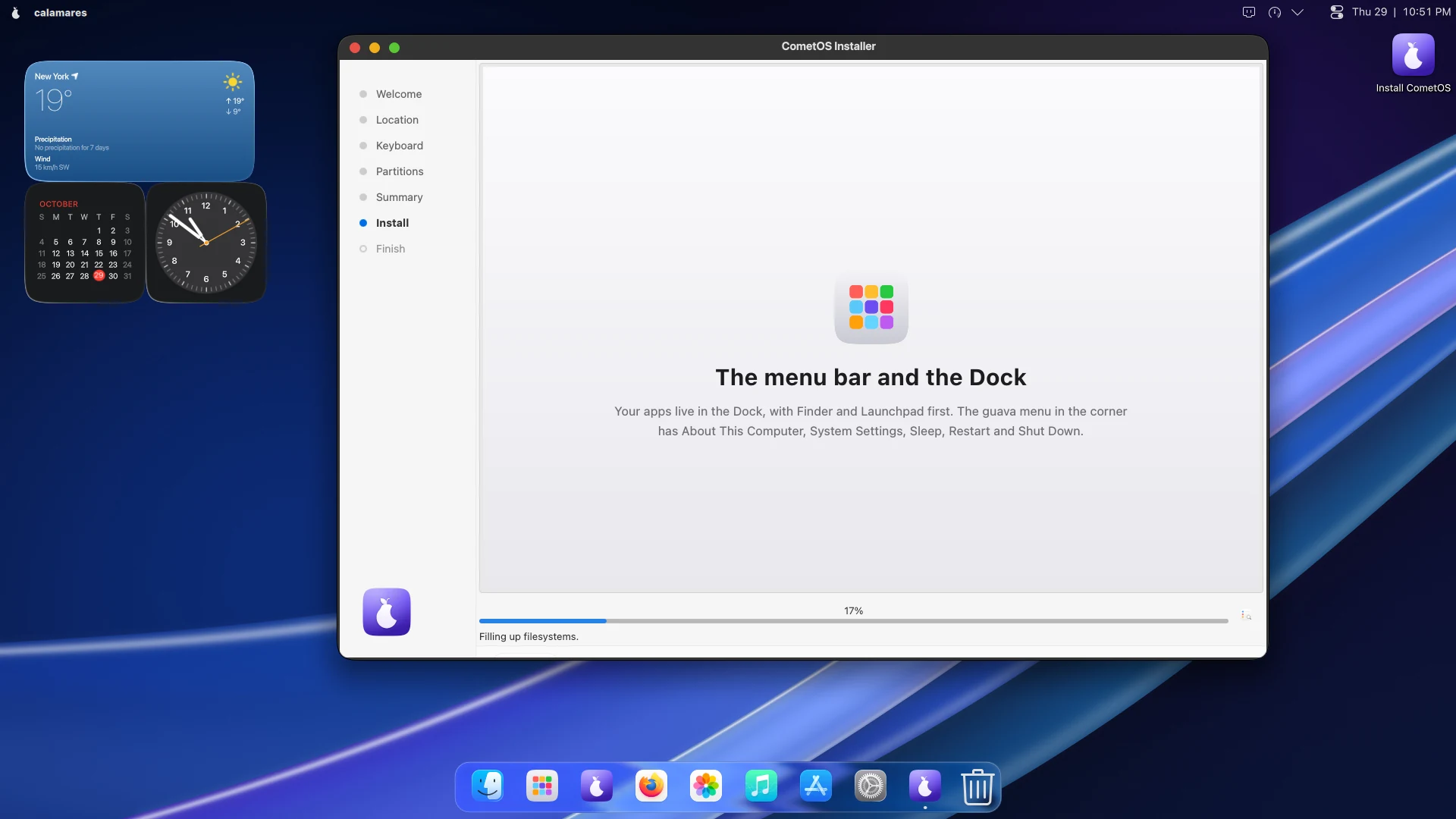
While it installs. A short tour plays while the files are copied, so the wait teaches you something.
While it installsA short tour plays while the files are copied, so the wait teaches you something.
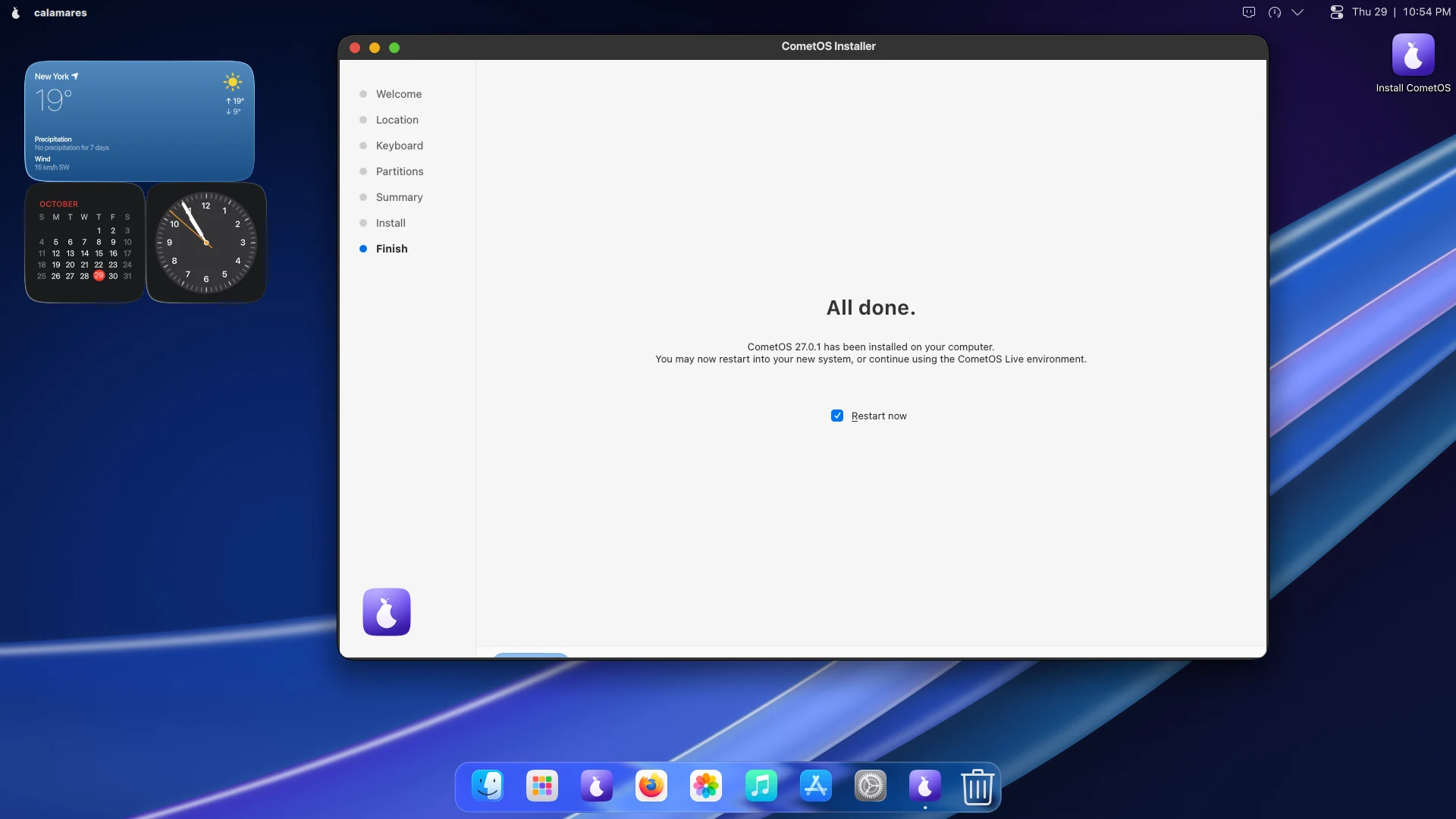
All done. Restart into your new system, or keep using the live desktop.
All doneRestart into your new system, or keep using the live desktop.

See it on your own computer.

Try CometOS from a USB stick or a virtual machine first. Nothing changes on your computer until you choose Install.